---
title: Setting Up Wordly For Hosting Zoom Meetings
description: How to set up the Wordly app when hosting a Zoom meeting
---
[Skip to content](https://help.wordly.ai/setting-up-wordly-for-hosting-zoom-meeting#main-content)
- [English](https://help.wordly.ai/setting-up-wordly-for-hosting-zoom-meeting)
- [Español](https://help.wordly.ai/es/setting-up-wordly-for-hosting-zoom-meeting)
- [Français](https://help.wordly.ai/fr/setting-up-wordly-for-hosting-zoom-meeting)
English
Show submenu for translations
[](https://help.wordly.ai/?hsLang=en)
Open main navigation
Close main navigation
- - [English](https://help.wordly.ai/setting-up-wordly-for-hosting-zoom-meeting)
- [Español](https://help.wordly.ai/es/setting-up-wordly-for-hosting-zoom-meeting)
- [Français](https://help.wordly.ai/fr/setting-up-wordly-for-hosting-zoom-meeting)
English
Show submenu for translations
- [Submit a Ticket](mailto:support@wordly.ai)
[Submit a Ticket](mailto:support@wordly.ai)
Hi! How can we help?
- There are no suggestions because the search field is empty.
1. [Wordly Knowledge Center](https://help.wordly.ai/?hsLang=en)
2. [Integrations and APIs](https://help.wordly.ai/integrations-and-apis?hsLang=en)
3. [Wordly for Zoom](https://help.wordly.ai/integrations-and-apis?hsLang=en#wordly-for-zoom)
# Setting Up Wordly For Hosting Zoom Meetings
## How to set up the Wordly app when hosting a Zoom meeting
The Wordly App for Zoom enables real-time AI translation for your Zoom meeting participants. To get started, complete the following setup steps:
- [Install the Wordly App for Zoom](https://help.wordly.ai/setting-up-wordly-for-hosting-zoom-meeting#install).
- [Link your Wordly App for Zoom to your Wordly account](https://help.wordly.ai/setting-up-wordly-for-hosting-zoom-meeting#link).
- [Enable Live Streaming in your Zoom account](https://help.wordly.ai/setting-up-wordly-for-hosting-zoom-meeting#enable-livestream).
*Attendees in your meeting can be invited to your translation session and experience translations through the Wordly App for Zoom without installing the app or needing a Wordly account.*
### Install Wordly App for Zoom
#### Prerequisites
The following prerequisites are needed to install the [Wordly App for Zoom](https://www.wordly.ai/zoom-translation):
- Pro, Business, or Enterprise Zoom account.
- For desktop: The latest installed app for Windows or macOS.
- For mobile: The latest iOS or Android installed Zoom app,
- [Pre-approval to install the Wordly App for Zoom from the Zoom marketplace.](https://help.wordly.ai/setting-up-wordly-for-hosting-zoom-meeting#business)
*If the Wordly App for Zoom is not pre-approved for you in the marketplace, you will need to contact your Zoom administrator.*
Visit the [Zoom Help Center](https://support.zoom.com/hc/en) for more information on how to get started with Zoom Apps.
#### To install Wordly App for Zoom
1. Sign into your Zoom account.
2. Go to the [Wordly App for Zoom](https://marketplace.zoom.us/apps/wqXHyNXhRQy0V5CeVTGScw) in the Zoom Marketplace and install the Wordly App for Zoom.
For additional help with installing Zoom apps, see the [Zoom support documentation](https://support.zoom.com/hc/en/article?id=zm_kb&sysparm_article=KB0062643).
#### For Zoom business accounts
If you are an individual Zoom user, you are automatically approved to install the Wordly App for Zoom.
However, if have a business account, your account administrator may need to approve the app before you can install it. This page includes some helpful hints to speed up this approval.
1. Go to the [Zoom App authorization page](https://marketplace.zoom.us/) and “request pre-approval” from the Zoom App authorization page.
2. Look up your administrator’s email address. You can find the the email address of your organization’s Zoom Account Administrator under the Account Profile in Zoom.
3. Email your Zoom Account Administrator and ask them to approve the Wordly App for Zoom.
You can also uninstall theWordly App for Zoom from:
- [Within your Zoom app](https://help.wordly.ai/setting-up-wordly-for-hosting-zoom-meeting#zoom-app).
- [A desktop browser](https://help.wordly.ai/setting-up-wordly-for-hosting-zoom-meeting#desktop-browser).
#### To uninstall in the Zoom App
1. In Zoom, click on the Apps tab and click My Apps.
2. Click Manage. In the Zoom Marketplace, locate the Wordly Translations and Captions app.
3. Click Uninstall.
#### To uninstall in a desktop browser
1. Go to the Zoom Marketplace and log into your account.
2. Click Manage.
3. Select your added apps, then locate the Wordly Translations and Captions app. Remove.
### Link With Your Wordly Account
You need to link [the Wordly App for Zoom](https://www.wordly.ai/zoom-translation) with your Wordly account if you want to host Wordly translation sessions during your Zoom meetings. Only a host with a linked Wordly account and sufficient available Wordly minutes can start a translation session. Note: the host's Zoom account must be a paid account (Pro, Business, or Enterprise) — free Zoom accounts are not supported.
*Only one Zoom account can be linked to one Wordly account. You can't link multiple Zoom accounts to your Wordly accounts*.
#### To link your Wordly account to the Wordly App for Zoom
1. Open the Zoom desktop app and click Apps
2. Choose one of the options to link the account:
- **Link Accounts:** Select this option if the Wordly App for Zoom detects that your Zoom email address is being used by a Wordly account.
- Click the Link button to link to the Wordly account.
- **Sign in to Wordly:** Select this option if you have a Wordly account but it uses a different email address than your Zoom account.
- Click the Sign In button. This opens the Wordly login page in your Web browser where you can sign in normally. Once you have signed in, Wordly links your account and returns you back to Zoom.
- **Register with Wordly:** Select this option if you don't have a Wordly account yet.
- Click Register. This opens the Wordly registration page in your Web browser where you can create a new account. It's free to sign up for Wordly and you'll receive free Wordly minutes to use in your first meeting. Once you've created the account, Wordly sets up the account, links it with the Wordly App for Zoom, and then returns you back to Zoom.
You can unlink your Wordly account at any time using the app.
#### To unlink your Wordly account
1. Open the Wordly App for Zoom in the main Zoom window.
2. Click the My Account menu found in the top right.
3. Click Unlink Wordly Account and click Unlink in the dialog window.
After unlinking your Wordly account, you can link to the same Wordly account or a different one.
*You won't be able to start a translation session in Zoom when your account is not linked. You must be linked to a Wordly account before you can start a translation session.*
### Enable Live streaming
The Wordly App for Zoom needs access to the audio from your Zoom meeting so that it can listen to the speakers and translate what they are saying for the other participants.
The app uses the Live streaming feature in Zoom to access your Zoom audio. You need to enable Live streaming before you can host your first Wordly translation session.
*In order to enable live streaming in Zoom, you must have admin permissions to edit Zoom settings.*
#### To enable live streaming
1. In your internet browser, sign into Zoom.
2. Locate Live stream in Settings. (For more information about Zoom navigation, see [Zoom support](https://support.zoom.com/hc/en).)
3. Make sure that live streaming is turned on.
4. SelectCustom Live Streaming Service and type Wordly into the text field.
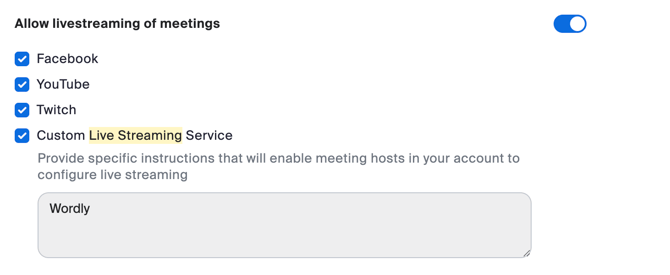
You'll also need to enable Zoom Apps to display in Zoom so you can find the Wordly app during your meeting.
#### To enable Zoom Apps
1. In your internet browser, sign into Zoom.
2. Locate Zoom Apps in Settings.
3. Make sure that the "Zoom Apps Quick Launch Button" is turned on.
### Next Steps
Once you set up Wordly for your Zoom meeting, you're ready to [host your meeting.](https://help.wordly.ai/hosting-zoom-meeting-or-webinar?hsLang=en)
- [The Wordly Portal](https://help.wordly.ai/the-wordly-portal?hsLang=en#main-content)
- [Navigating Your Portal](https://help.wordly.ai/the-wordly-portal?hsLang=en#navigating-your-portal)
- [Multi-Portal Sharing](https://help.wordly.ai/the-wordly-portal?hsLang=en#multi-portal-sharing)
- [Creating Your Wordly Session](https://help.wordly.ai/creating-your-wordly-session?hsLang=en#main-content)
- [Session Basics](https://help.wordly.ai/creating-your-wordly-session?hsLang=en#session-basics)
- [Automatic Language Selection](https://help.wordly.ai/creating-your-wordly-session?hsLang=en#automatic-language-selection)
- [Hosting a Wordly Session](https://help.wordly.ai/hosting-a-wordly-session?hsLang=en#main-content)
- [Hosting Basics](https://help.wordly.ai/hosting-a-wordly-session?hsLang=en#hosting-basics)
- [Transcripts](https://help.wordly.ai/hosting-a-wordly-session?hsLang=en#transcripts)
- [In-Person Events](https://help.wordly.ai/hosting-a-wordly-session?hsLang=en#in-person-events)
- [Glossaries](https://help.wordly.ai/glossaries?hsLang=en)
- [Reporting](https://help.wordly.ai/reporting?hsLang=en)
- [Integrations and APIs](https://help.wordly.ai/integrations-and-apis?hsLang=en#main-content)
- [Wordly with AV Systems](https://help.wordly.ai/integrations-and-apis?hsLang=en#wordly-with-av-systems)
- [Wordly for Zoom](https://help.wordly.ai/integrations-and-apis?hsLang=en#wordly-for-zoom)
- [Streaming To Non-Integrated Platforms](https://help.wordly.ai/integrations-and-apis?hsLang=en#streaming-to-non-integrated-platforms)
- [Wordly for Cvent](https://help.wordly.ai/integrations-and-apis?hsLang=en#wordly-for-cvent)
- [Wordly for Webex](https://help.wordly.ai/integrations-and-apis?hsLang=en#wordly-for-webex)
- [Wordly for Google Meet](https://help.wordly.ai/integrations-and-apis?hsLang=en#wordly-for-google-meet)
- [Wordly for Microsoft Teams](https://help.wordly.ai/integrations-and-apis?hsLang=en#wordly-for-microsoft-teams)
- [APIs and Developer Tools](https://help.wordly.ai/integrations-and-apis?hsLang=en#apis-and-developer-tools)
- [Platform Updates and Releases](https://help.wordly.ai/platform-updates-and-releases?hsLang=en)
- [FAQ](https://help.wordly.ai/faq?hsLang=en)
- [Self-Onboarding](https://help.wordly.ai/self-onboarding?hsLang=en#main-content)
- [I'm a place of worship using Wordly for our weekly services](https://help.wordly.ai/self-onboarding?hsLang=en#im-a-place-of-worship-using-wordly-for-our-weekly-services)
- [I'm using Wordly in-person for a meeting, conference, or event](https://help.wordly.ai/self-onboarding?hsLang=en#im-using-wordly-in-person-for-a-meeting-conference-or-event)
- [I'm using Wordly with a virtual meeting or event platform](https://help.wordly.ai/self-onboarding?hsLang=en#im-using-wordly-with-a-virtual-meeting-or-event-platform)
- [I'm using Wordly with both attendees in person and attendees online at the same event](https://help.wordly.ai/self-onboarding?hsLang=en#im-using-wordly-with-both-attendees-in-person-and-attendees-online-at-the-same-event)
- [I'm using Wordly for one-on-one conversations.](https://help.wordly.ai/self-onboarding?hsLang=en#im-using-wordly-for-one-on-one-conversations)
- [I'm looking for AV setup guides](https://help.wordly.ai/self-onboarding?hsLang=en#im-looking-for-av-setup-guides)
- [I'm using Wordly in a way that's not listed above.](https://help.wordly.ai/self-onboarding?hsLang=en#im-using-wordly-in-a-way-thats-not-listed-above)
- [Attending Wordly Sessions](https://help.wordly.ai/attending-wordly-sessions?hsLang=en)
[Privacy Policy](https://wordly.ai/privacy-policy) | [Terms of Service](https://wordly.ai/wordly-inc-terms-of-service)
Copyright © 2026, Wordly, Inc.
```json
{
"@context" : "https://schema.org",
"@type" : "VideoObject",
"caption" : {
"@type" : "MediaObject",
"contentUrl" : "https://help.wordly.ai/media-transcripts/165302303841/en.vtt",
"inLanguage" : "en",
"name" : "en Captions"
},
"contentUrl" : "https://stream.mux.com/021ysA008N9o136FLckc5ocUOJe3T1SyGO2Pji01mCNqD8/capped-1080p.mp4",
"dateModified" : "2026-01-30T20:20:48.316Z",
"duration" : "PT6M16.72S",
"height" : 1080,
"name" : "Wordly-Zoom-Onboarding-Video",
"thumbnailUrl" : "https://5315820.fs1.hubspotusercontent-na1.net/hubfs/5315820/Assets-Videos/Wordly-Zoom-Onboarding-Video.mp4/medium.jpg",
"uploadDate" : "2024-04-23T15:42:47.568Z",
"width" : 1920
}
```