
To attend a session using the Wordly mobile app, download the app from the App Store or Google Play Store.
To download the Wordly app
- Open the App Store (iOS) or Google Play Store (Android) on your device.
- Search for "Wordly" and select the Wordly app from the results.
- Tap Download or Install to install the app.
- After opening the app, accept the terms of service.
To use the Wordly app
Prerequisites
- Session ID and passcode. Session ID is always four letters and four numbers.
- If you use Google Chrome in your device, disable Google Translate in the browser. This prevents Google Chrome from overriding Wordly's selected translation language.
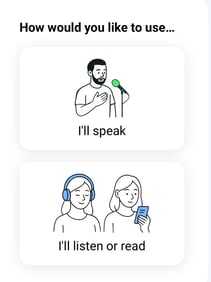
- After launching the Wordly app, select 'I'll listen or read.'
-
Enter the following:
- Session ID.
- Passcode.
- Name.
- Click Join.
Wordly App Options
Within the Wordly app, you have the following options:
- Tap/click the language dropdown menu at the top of the app (
 ) to change the displayed language.
 - Tap/click the speaker button (
 ) to hear a text-to-speech version of the translated dialog.
 - Tap/click the info button (
 ) to choose:
- if Wordly displays the text after the full translation has been completed.
- (iOS only) Enable the Play a virtual voice when speaker is speaking my own language setting to hear the transcript read aloud even when the speaker's language matches your own — useful when it is hard to hear or understand the speaker.
- if Wordly displays the text after the full translation has been completed.
- Tap/click the the exit button (
 ) to leave the session.
Wordly remembers your last session and allows you to rejoin without entering the ID and password.