
- Technical Requirements.
- Pricing.
- In-person Events.
- Languages.
- Transcripts.
- Data Storage.
- Zoom.
- Promoting Wordly Translation and Captions
Technical Requirements
What are the internet requirements to run Wordly?
It's important to have a stable internet connection for optimal Wordly performance. You'll need a minimum of:
- 5 Mbps bandwidth to stream Wordly as a presenter.
- Attendees need at least 6Mbps bandwidth to receive Wordly (Measured at 500 concurrent attendees).
- If you're using Silent Theater, presenters and attendees need at least 10Mbps bandwidth for Wordly (Measured at 500 concurrent attendees).
Pricing
How much is Wordly?
Wordly's pricing depends on the number of hours, users, languages, and additional features you need. There are discounts for volume usage and for non-profits. For specific pricing, please contact us.
How does Wordly's subscription work?
With your subscription, you purchase a set amount of hours that you can use for your organization. You can use your hours across multiple sessions for up to 12 months after purchase. You are not charged a monthly or yearly fee to use Wordly. The Wordly subscription doesn't automatically renew.
There are multiple tiers of Wordly hours: Starter, Pro, Pro+, Corporate, Corporate+, and Enterprise. For more information about these tiers, read Wordly Pricing.
After you use your pool of hours, you can purchase additional time from the "Purchase" tab in your portal.
In-person Events
At my event, I’m playing a video. How can I have Wordly translate the video sound?
In most cases, a video’s audio shares the same audio stream as the event microphone, so Wordly can translate it automatically — no additional setup is required. However, if the video audio is routed on a separate channel, you may need to configure your audio source to include it in the main stream.
I entered 2 hours when I created my session, but my event is longer. Will my Wordly session end before I'm done?
No. Your Wordly session doesn't end if your session goes over. The Wordly session only ends when you or another operator manually ends the session.
Languages
What languages does Wordly support?
Wordly supports a wide variety of languages, including major world languages and regional dialects. See supported languages for a complete list.
Can Wordly understand different user accents?
Yes. Wordly can understand different speaker accents. Wordly’s AI models are trained with datasets that include speakers from different areas that speak each language.
Can participants change the language they want to read along in?
Yes. While in a session, attendees can change to any of the supported languages at any time without exiting the session. See Attending A Wordly Session for more information.
Transcripts
How can I access meeting transcripts?
The host can choose to save or not save a transcript of each Wordly session. The transcripts can be found in the Wordly portal and can be downloaded in several formats: plain text, text with timestamps, and closed caption compatible Web VTT. These files are generated through AI transcription, ensuring spoken content is captured accurately.
To download a transcript, the host can go to their Wordly dashboard and select Transcripts from the left side menu. For more information, see Accessing Transcripts.
Can I get transcripts in other languages?
Yes. Subscribers to Wordly Pro (and higher tiers) are also able to translate session transcripts. From more information, see "Translating Transcripts" in Accessing Transcripts.
Data Storage
Where is my data stored?
Wordly uses Google Cloud Platform (GCP) for primary cloud services and Amazon Web Services (AWS) for backup and redundancy. Both providers meet industry security standards, including SOC 2 and ISO 27001 certifications.
During live interpretation sessions, Wordly processes sensitive content in real time in secure environments. Data is encrypted in transit and processed only during the session. Wordly doesn’t store or retain data after sessions unless customers enable features like session recording or transcription. Wordly staff can access transcripts only with customer authorization, such as for troubleshooting.
Where is my data processed?
Wordly processes all data securely in the same cloud environments where it’s stored, primarily in the US. This includes services like interpretation, translation, transcription, and summarization, all securely performed in our cloud infrastructure.
Where can I find more information about how Wordly uses my data?
We have a Security and Compliance page that has centralized access to our security policies, privacy practices, certifications, and FAQs about Wordly’s customer data protection. Be sure to subscribe to updates so you'll get the latest information about Wordly's compliance.
Zoom
Why isn't the Wordly App for Zoom working? Use this section to diagnose and fix the most common issues, including sessions that won't start, poor translation quality, unexpected minute consumption, loading failures, reconnection errors, and account-linking problems.
- Translation quality is poor.
- Wordly minutes are being consumed faster than expected.
- The Wordly App for Zoom won’t load.
- The Wordly App for Zoom says it is reconnecting.
- Wordly is freezing or missing elements.
- I can't find the Apps button in Zoom to start Wordly.
- My attendees using the Zoom web browser can't see the Wordly translations.
- My Zoom chat messages aren't being translated.
- My attendees want text to speech (TTS) translations.
- I need to have both Zoom chat and Wordly open at the same time.
- Error messages.
The Wordly translation session won’t start in Zoom.
- Are you the Zoom meeting host, and did you schedule this meeting? Only the Zoom host who scheduled the meeting can start a translation session.
- Have you linked your Wordly and Zoom accounts? A Wordly account that is linked with your Zoom account is required to start a translation session (Read "Link With Your Wordly Account.")
- Do you have enough minutes in your Wordly portal?
- Is your internet connection stable?
- Have you’ve previously started a Wordly translation session in this meeting? If so, you may need to wait a minute or two before trying again.
- Have you enabled live streaming in your Zoom account settings (Read "Enable Live Streaming" under Linking Your Wordly Account with Zoom)?
- Are multiple people using the same Zoom account? If so, only the first person that joins the meeting can start the Wordly translation session.
Translation quality is poor.
- Is the speaker language set to the language your presenter is speaking in? Try changing the language.
- Have you enabled Original Sound in your Zoom preferences (read Maximizing Zoom Sound)?
- Are you using a microphone close to your face?
- Are participants enunciating, speaking at a moderate pace, and occasionally pausing between sentences?
- Have you minimized background noise, such as music and traffic?
- Are speakers taking turns speaking and not talking over each other?
- Does the speaker have a stable internet connection?
- Is the Wordly session still active and not paused or timed out?
- Have you created a custom glossary to cover specialized terminology, proper names, product names, and industry jargon in your field (read About Glossaries)?
Wordly minutes are being consumed faster than expected.
- Have you ended the Wordly session when you’re done with translation? Minutes will continue to be consumed until the Wordly session or Zoom meeting is ended. (Read "Ending a Session" )
- Have you purchased enough minutes to meet your team’s needs?
- Are you running multiple simultaneous translation sessions? Each active session consumes minutes independently.
The Wordly App for Zoom won’t load.
- Check the prerequisites under Installing to ensure that your account and operating system are capable of running Zoom Apps.
The Wordly App for Zoom says it is reconnecting.
This message appears if the app is unable to communicate with the Wordly service over the internet. The app will continually attempt to reconnect when in this state.
- Check your network connection and ensure that you are connected to the internet.
- Try leaving the Wordly session and rejoining it.
- Check the Wordly Status page to see if Wordly is currently experiencing downtime.
- Make sure that you have enabled live streaming in your Zoom account settings (Read "Enable Live Streaming" under Linking Your Wordly Account with Zoom). You'll need to refresh the app after enabling live streaming.
Wordly is freezing or missing elements
- Check that you have the latest version of the Zoom app installed. This often resolves a large share of missing button and blank panel issues.
- If issues persist, restart the Zoom meeting.
I can't find the Apps button in Zoom to start Wordly
The Zoom Apps Quick Launch Button may be disabled. To enable the Zoom Apps Quick Launch Button, you need to sign into the Zoom Web Portal as an admin and toggle on the Zoom Apps Quick Launch Button. Go to Account Management and select Account Settings. The setting will be under Zoom apps.
My attendees using the Zoom web browser can't see the Wordly translations
The Zoom web browser doesn't reliably display Wordly translations. Direct attendees to use the Zoom desktop app rather than the web browser version.
My Zoom chat messages aren't being translated
Wordly only translates spoken audio, not Zoom's text chat feature.
My attendees want text to speech (TTS) translations
While Zoom does not support TTS, attendees can access TTS translations by joining through the attendee link on a separate device. They should scan the meeting QR code or click the attendee link on a device other than the one they are using for Zoom. This prevents the translated audio from competing with the meeting audio. Attendees should use headphones or mute the Zoom meeting sound. For more information, read Adding Text To Speech for Presenters.
I need to have both Zoom chat and Wordly open at the same time
Wordly and Zoom chat share the same panel space in Zoom. You can pop out the Wordly panel so you can display both at the same time. To pop out the Wordly panel, click the  icon. You can now move the Wordly panel to anywhere on your system's desktop.
Error message: Unauthorized request
This error typically means you are logged out of Zoom or signed into the wrong Zoom account. To resolve it, log into the Zoom account that is linked to your Wordly account. To verify which accounts are linked, go to the Zoom client home screen and select Apps. Click on the Wordly app and there you should see the email(s) linked to your Wordly and Zoom accounts.
Error message: User already associated with Wordly account
This error appears when your Zoom account is already linked to a different Wordly account. To resolve it, you need to disconnect your Wordly account from the other Zoom account.
- In Zoom, find the Wordly Translations App in the added apps.
- Remove the Wordly Translations App. Confirm the removal.
- Return to the Wordly Translations App in the Zoom App Marketplace. If you are an administrator, click Add for Myself and Add for Others. Other users should just click Add for Myself.
- Open your Zoom app, go to Apps. Click Wordly and then click Link Wordly Account to relink the accounts.
Error message: this account is already being used
When linking Zoom and Wordly accounts, you may encounter this error, which means that the Wordly account you are attempting to link is already connected to a Zoom account. Log into that Zoom account and follow the steps above for unlinking the Wordly and Zoom accounts.
Wordly cannot tell you which Zoom account your Wordly is connected to. If you cannot identify or access the correct Zoom account to unlink it, contact Wordly Support. Our team will manually unlink the accounts for you.
Error message: Recording Permission Denied
If you encounter this error, you need to make sure that the following permissions are selected in Zoom. Under the Recording settings in Zoom:
- Toggle 'Local recording on'.

- Make sure that both 'Internal meeting participants' and 'External meeting participants' checkboxes are selected.
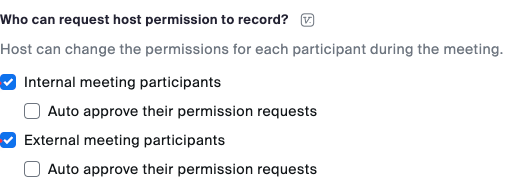
Within the Zoom call, make sure that all participants can 'Request Local Recording Permission': 
Wordly App for Zoom Support
If the above troubleshooting tips can't help you with your issue, try the following:
- Visit our Wordly for Zoom documentation.
- Submit a support request and describe the issue you're experiencing.
- We'll respond within 1 business day (Monday–Friday, excluding public holidays).
Promoting Wordly Translation and Captions
How do I let attendees know Wordly is available at my event?
Use the Wordly Communication Kit. It has ready-to-use templates and examples to tell your audience that live translation and captions are available, including:
-
An email template to send attendees before your event
-
Event sign templates for in-person venues
-
Instructions for adding Wordly session links to your event app
-
A website page template, website banner ads, and a press release template
-
Social media templates
Include your attendee link or QR code in each one. To get them, read Sharing the Session.
Where can I get Wordly logos for my event materials?
The Wordly Communication Kit links to the Wordly Brand Guide, where you can find official Wordly logos for your signs, emails, and website.