
You can change the speaker language in Wordly at any time during a live session — either directly from the Wordly session interface or from the Wordly Meeting Bot (or RTMP stream) via the dashboard. Choose one of the following methods:
To change the language during the Wordly session
- During your Wordly session, expand the Language Controls window.
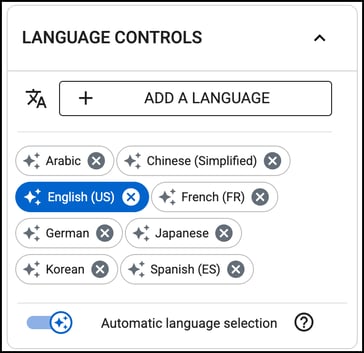
- Select the language that you want to switch to.
- Confirm that Wordly has switched to the selected language. The Language Controls window will reflect the newly active speaker language.
- (Optional) To add a language, click Add A Language and select the language from the drop down menu.
- (Optional) To have Wordly automatically detect the speaker's language and switch to that language, toggle Automatic language selection. For more information, see Using Automatic Language Selection
To change the language from the Wordly Meeting Bot or RTMP stream
- From the Wordly dashboard, click Sessions from the left side menu. Click the active session.
- In the "Live Session Controls" window, select the language of the speaker from the drop down menu.
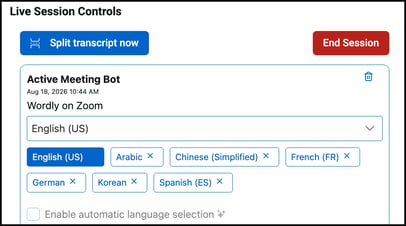
- (Optional) If you want to have Wordly detect and switch the speaker's language automatically, check the Enable automatic language selection checkbox. For more information, see Using Automatic Language Selection.