
You can start and run your Wordly session from the Wordly Translation App. You may want to this when using Wordly in a one-on-one meeting.
To download the Wordly app
- Download and install the Wordly app.
The Wordly Translated app is available for both Apple and Android and can be found to download in the App Store or Google Play Store.
- After opening the app, accept the terms of service.
To use the Wordly app
Prerequisites
- Session ID and passcode. Session ID is always four letters and four numbers.
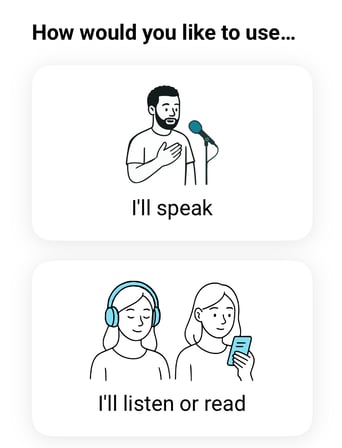
- After launching the Wordly app, select 'I'll speak.'
-
Enter the following:
- Session ID.
- Passcode.
- Name.
- Click/tap Join.
- Click/tap the microphone button (
 ) and begin speaking. By default, the application is set to push-to-talk, where you need to push the microphone button when speaking. You can change this by going to Settings (
  ).
).
Wordly App Options
Within the Wordly app, you have the following options:
- The language options are set when the session is created or edited. However, you can edit these options in the Wordly app. Tap/click the language dropdown menu at the top of the app (
 ) to access the language controls.
- Click/Tap the language that you want to speak in.
- Click 'Add more languages' to add another input language. You can have a total of 9 input languages.
- Select the Automatic language selection checkbox to enable Automatic language selection.
- Click the Participants button (
 ) to view the presenters and attendees attending the event.
 - Click the Settings button ( ) to:
- Change how the text displays. Check the Show only complete phrases checkbox to display the text after the full translation has completed.
- Change the presenter's microphone. You can choose:
- Open Microphone. Session starts with your computer sending audio to Wordly immediately. To save minutes, you should only use this setting if you are ready to use Wordly as soon as the session starts. To pause the microphone, press the microphone button to mute and unmute.
- Push to talk. Speakers must unmute themselves by holding down the microphone button while speaking.
- Tap/click the the exit button (
 ) to end the session.