
The first step in using Wordly in your Zoom meeting is to install the Wordly App for Zoom in your Zoom app.
Navigation in Zoom may be different, depending upon the version and operating system that you're running.
Install Wordly App for Zoom
Prerequisites
The following prerequisites are needed to install the Wordly App for Zoom:
- Pro, Business, or Enterprise Zoom account.
- For desktop: The latest installed app for Windows or macOS.
- For mobile: The latest iOS or Android installed Zoom app,
- Pre-approval to install the Wordly App for Zoom from the Zoom marketplace.
- It's best to use the same email for both your Zoom and your Wordly account.
If the Wordly App for Zoom is not pre-approved for you in the marketplace, you will need to contact your Zoom administrator.
Visit the Zoom Help Center for more information on how to get started with Zoom Apps.
To install Wordly App for Zoom
- Launch the Zoom App and sign into your Zoom account.
Important: Make sure that you're signing into the Zoom App, not through a browser. - Go to the Wordly App for Zoom in the Zoom Marketplace and install the Wordly App for Zoom.
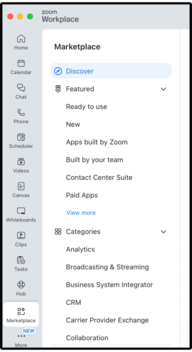
For additional help with installing Zoom apps, see the Zoom support documentation.
For Zoom business accounts
If you are an individual Zoom user, you are automatically approved to install the Wordly App for Zoom.
However, if have a business account, your account administrator may need to approve the app before you can install it. This page includes some helpful hints to speed up this approval.
- Go to the Zoom App authorization page and “request pre-approval” from the Zoom App authorization page.
- Look up your administrator’s email address. You can find the the email address of your organization’s Zoom Account Administrator under the Account Profile in Zoom.
- Email your Zoom Account Administrator and ask them to approve the Wordly App for Zoom.
You can also uninstall the Wordly App for Zoom from:
To uninstall in the Zoom App
- In the Zoom app, go to Marketplace.
- Click My Library and select Wordly.
- Click the three dot menu under Actions and select Remove.
- Click Remove.
To uninstall in a desktop browser
- Sign into your Zoom account from go to Marketplace.
- Click My Library and select Wordly.
- Click the three dot menu under Actions and select Remove.
- Click Remove.
Next Steps
You need to link the Wordly App for Zoom with your Wordly account. Read Linking You Wordly Account with Zoom.