
You can add remote presenters to your Wordly session so that Wordly can capture the audio and translate the conversation for your attendees.
To add remote presenters, treat the remote presenters’ feed as a separate microphone and route that feed into your audio system.
If the remote presenters will be heard through the venue’s loudspeakers for the in-person audience, no additional steps are needed to set up Wordly.
Example: You have a remote presenter joining from Zoom. Set up Zoom on a separate device from the one running Wordly. Route that device’s audio feed into your audio system.
In this example, you do not need to use the Wordly App for Zoom or the Wordly Meeting Bot for translation.
If you have remote attendees, share with them the same link or QR code that you’ve given to in-person attendees.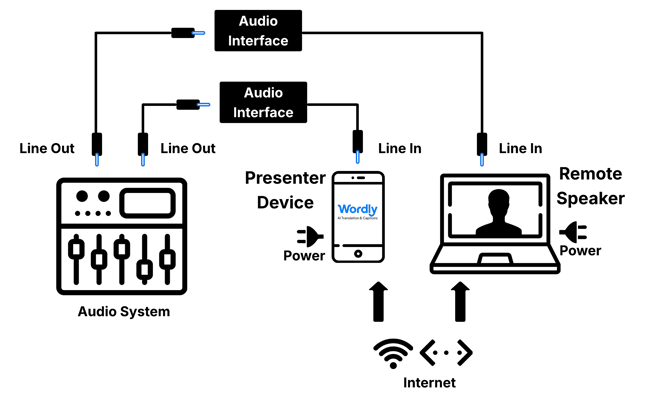
If your specific technical configuration differs from this standard setup, please contact Wordly Support.
Allowing online attendees to ask questions
If your remote attendees are able to speak in the virtual meeting or webinar being used by the remote presenter, then the audio system, and therefore Wordly, should be able to hear them the same as with the remote speaker.
If the remote attendees are in a separate virtual meeting, you should treat the online attendee audio as a separate microphone and route that feed into your audio system as well.
Often online attendees submit their questions via chat. In this case, you’ll need a moderator to relay the questions and read them aloud so Wordly can capture the audio.