
Once you've created your session, share the attendee access options so participants can open the live Wordly output on their device.
If your attendees are attending a meeting through a video conferencing platform, such as Zoom and Microsoft Teams, read how to share Wordly in Integrations for Virtual Events.
You can share access in one or both of these ways:
- Attendee Shortcut link - Opens the live session output so attendees can view captions and translations on their own device.
- QR code - Lets attendees scan and open that same session access on a mobile device.
The Attendee Link is for viewers and listeners only. It does not start or run the session. Presenter Links are for speakers or operators and can be used to join and run the session.
To send attendees links
- From the Wordly dashboard, select "Sessions" from the left side menu.
- Select the session that you want to share. Click "Get Links to Join."

- Expand the "Join On Personal Devices" window.
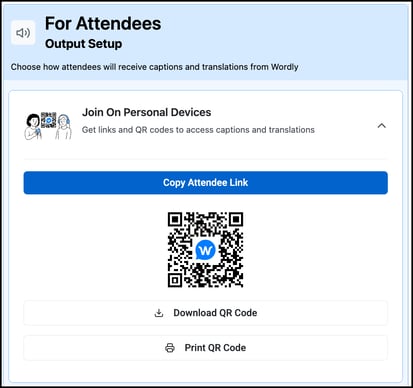
- Choose how you want to share access:
- "Copy Attendee Link" to send the session link directly.
- "Download QR Code" or "Print QR Code." to share scannable access. Read Downloading QR Codes for more information.
After attendees open the link or QR code, they can choose their language and follow the session’s captions and translations from their device.