
There are a wide variety of ways to start a Wordly session, depending on the setting you are in and the device you are using.
In Person Events
Laptop/Computer
For speakers
In your Wordly portal, locate your session. Click "Get Links to Join." Select "Speak Using Wordly (General Use)." Click either "Present Now" or "Copy Presenter Link.”
For attendees
Follow the Attendee link to join the Wordly session.
Anyone using a Presenter Link will start the Wordly session. It doesn’t have to start in the Wordly Portal.
Android/IOS Device
Download Wordly’s app on Google Play or Apple Store:
Once you have the app. you can start the session.
To start a session in the app
- Launch the app.
- Click "I'll speak."
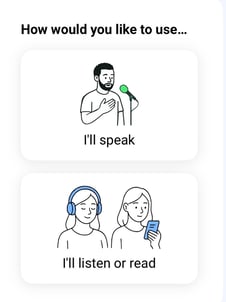
- On the "Join as a speaker" screen, fill out the Session ID, passcode, and your name.
- Click "Join."
Virtual Events
CVENT
There are different versions of Cvent. Contact Wordly to make sure you’re using the appropriate steps for your version of Cvent.
To integrate the Wordly App into your Cvent session, follow the Cvent Widget article.
Zoom
As the Zoom host, use the apps button at the bottom of your Zoom screen, select the Wordly App, confirm your language, and, if desired, specify a Session ID. Read Hosting a Zoom Meeting or Webinar.
Microsoft Teams
You can start a session by either using the Microsoft Teams for Wordly app or inviting the Meeting Bot to your meeting.
Google Meet
On the Session page of your Wordly Portal, click "Get Links to Join." Expand the Virtual Meetings and Webinar" box and click "Invite Meeting Bot." Wordly will start translating once the Google Meet host admits Wordly into the meeting. Read Use Wordly with Google Meet for more information.
Webex
Create a Wordly session then enable other streaming services in Webex. When you start your meeting or Webinar, start live streaming with Wordly using the information found in the Webex support article.
Streaming Generally
Starting an RTMPS stream to Wordly will start your Wordly session.