
You need to link the Wordly App for Zoom with your Wordly account if you want to host Wordly translation sessions during your Zoom meetings. Be aware:
Only a host with a linked Wordly account and sufficient available Wordly minutes can start a translation session.
-
The host's Zoom account must be a paid account (Pro, Business, or Enterprise) — free Zoom accounts are not supported.
- Only one Zoom account can be linked to one Wordly account. You can't link multiple Zoom accounts to your Wordly accounts.
Navigation in Zoom may be different, depending upon the version and operating system that you're running.
To link your Wordly account to the Wordly App for Zoom
- Launch the Zoom App and sign into your Zoom account.
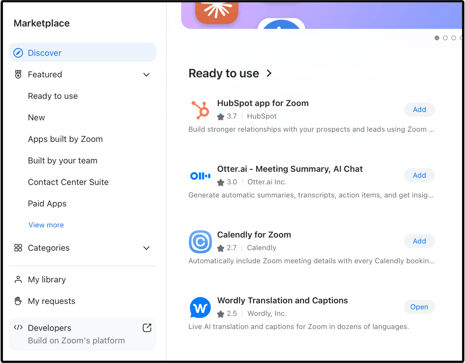
Important: Make sure that you're signing into the Zoom App, not through a browser. - Go to the Wordly App for Zoom in the Zoom Marketplace and find the Wordly App for Zoom under Ready to use. Click Open.
-
Choose one of the options to link the account:
 Link Accounts: Select this option if the Wordly App for Zoom detects that your Zoom email address is being used by a Wordly account.
- Click the Link button to link to the Wordly account.
 Sign in to Wordly: Select this option if you have a Wordly account but it uses a different email address than your Zoom account.
- Click the Sign In button. This opens the Wordly login page in your Web browser where you can sign in normally. Once you have signed in, Wordly links your account and returns you back to Zoom.
 Register with Wordly: Select this option if you don't have a Wordly account yet.
- Click Register. This opens the Wordly registration page in your Web browser where you can create a new account. It's free to sign up for Wordly and you'll receive free Wordly minutes to use in your first meeting. Once you've created the account, Wordly sets up the account, links it with the Wordly App for Zoom, and then returns you back to Zoom.
- Once you've linked your account, you'll need to set up Zoom settings so Wordly can capture your meeting.
You can unlink your Wordly account at any time using the app.
To unlink your Wordly account
- Open the Wordly App for Zoom in the main Zoom window.
- Click the My Account menu found in the top right.
- Click Unlink Wordly Account and click Unlink in the dialog window.
After unlinking your Wordly account, you can link to the same Wordly account or a different one.
You won't be able to start a translation session in Zoom when your account is not linked. You must be linked to a Wordly account before you can start a translation session.
Set Up Settings in Zoom
After linking your account, you need to change certain settings in Zoom to make sure that Wordly works with your Zoom meeting.
Enable live streaming
The Wordly App for Zoom needs access to the audio from your Zoom meeting so that it can listen to the speakers and translate what they are saying for the other participants.
The app uses the Live streaming feature in Zoom to access your Zoom audio. You need to enable Live streaming before you can host your first Wordly translation session.
In order to enable live streaming in Zoom, you must have admin permissions to edit Zoom settings.
To enable live streaming
- In your internet browser, sign into Zoom.
Important: Make sure that you're signing in by browser, not through the Zoom app. - Find "Allow livestreaming of meetings" in Settings." To locate, click Setting > View advanced feature > Meeting > In meeting (Advanced).
(For more information about Zoom navigation, see Zoom support.) - Make sure that live streaming is selected.
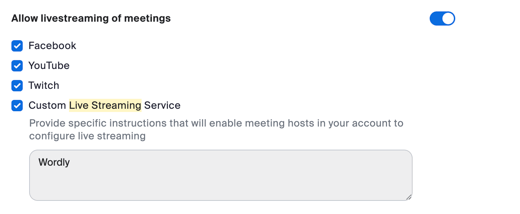
You'll also need to enable Zoom Apps to display in Zoom so you can find the Wordly app during your meeting.
To enable Zoom Apps
- In your internet browser, sign into Zoom.
- Locate Zoom Apps in Settings.
- Make sure that the "Zoom Apps Quick Launch Button" is turned on.
Next Steps
Once you set up Wordly for your Zoom meeting, you're ready to host your meeting.