
Wordly for Microsoft Teams is a browser-based companion app that displays your Microsoft Teams meeting and live AI-translated captions side by side. It supports Chrome and Edge browsers and works with the Teams desktop app or the Teams calendar in a web browser.
You can connect Wordly to Microsoft Teams if you have the Teams desktop app installed. You can also connect Wordly by using the Teams calendar app in a web browser.
When you use the Wordly to Microsoft Teams app, you need to be aware that:
- If the speaker needs to switch languages, they need to select the language from the "Add Language+" button. Automatic Language Selection isn't available.
- You also can't use this app with Teams webinars. In this instance, use the Wordly Bot.
- By default, attendees attending through Wordly to Microsoft Teams wait in a lobby before being allowed into the meeting by the host. If you want to allow all attendees into the meeting automatically, you'll need to set that in the Teams meeting options.
Prerequisites
-
To schedule and host meetings, you'll need a Microsoft account with a Teams license.
- A created Wordly session with a password.
In order to use Wordly to Microsoft Teams, you need to generate a custom Wordly link that you can share with attendees.
You can generate a Teams link by:
You and your attendees must join the meeting via the generated link, not through the Teams calendar invite. If attendees attend your Teams meeting without using the custom Wordly link, they won't be able to get Wordly translations.
Grant admin approval to the Wordly App for Microsoft Teams
The Wordly App for Microsoft Teams requires access to Microsoft Teams organization data, such as user profiles and calendars. To enable the integration, a Microsoft Teams administrator must grant the app permission.
Prerequisites
- A MS Teams administrator with the Application Administrator role.
To grant admin approval to Wordly App for Microsoft Teams, send your MS Teams administrator the following link: https://login.microsoftonline.com/organizations/adminconsent?client_id=f934daa7-86bd-409d-96fc-7d88a5528525&redirect_uri=https://teams.wordly.ai
They should be able to grant Wordly App for Microsoft Teams permission.
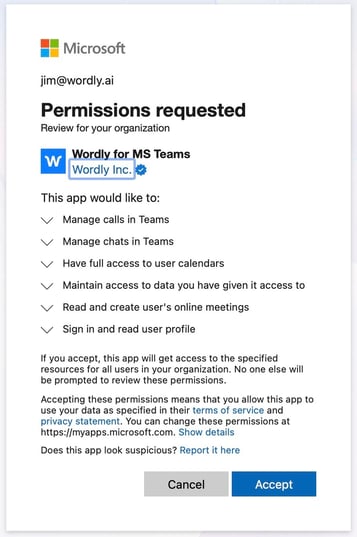
If the admin is unable to grant permissions through the link, they will have to set permissions in both the Microsoft Teams admin center and in Microsoft Entra.
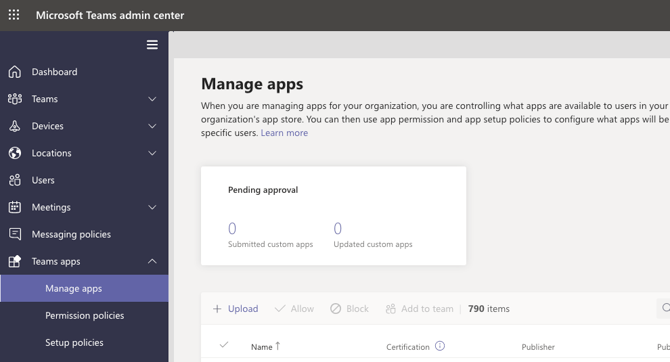
To add permission for Wordly in Microsoft Teams admin center
- In the Microsoft Teams admin center, go to Teams apps > Manage apps.
- Search for the Wordly app and select the Permissions tab.
- Select "Review permissions and consent."
- Sign in with your administrator credentials. Click "Accept."
To add permission for Wordly in Microsoft Entra
- Sign in to your Microsoft Entra account.
- From the left side menu, click "Enterprise apps."
- Click "+ New application."
- in the "Search application" field, search for "Wordly."
- Click "Wordly for MS Teams" app to open the Overview page.
- Click Create.
- Under the Security menu in the app's Overview page, click Permissions.
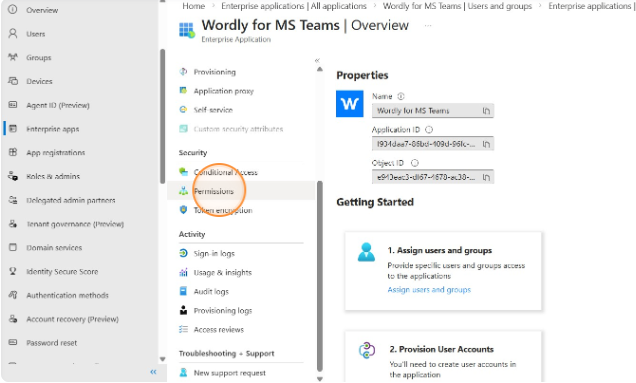
- Click "Grant admin consent for Wordly, Inc."
- In the Microsoft sign in window, select your admin account.
- Review the "Permission requested" list and click Accept.
After adding permissions in both Microsoft Teams admin center and Microsoft Entra, you'll be ready to generate a Teams link for Wordly.
To generate a Teams link through the Wordly Teams Scheduler
- From the Wordly dashboard, click the Sessions menu and select your desired session.
- Click "Get Links to Join" at the bottom of the session panel.
- Under the "For Presenters" panel, expand "Virtual Meetings and Webinars."
- Click "Schedule a New Meeting." This website is where you'll create Teams calendar events with Wordly links added to the description.
-
Sign into Microsoft Teams.
-
Enter the details of the meeting: title, date, time, and enter your own email in the participant field.
- You may add other people into the participant field. It will send an invite by MS Teams. If the participant isn't already on Teams, they won't receive the invite.
-
Enter a Wordly session ID and passcode.
-
Click 'Schedule meeting."
- At the bottom of the Schedule Meeting page, click the "Copy link" button to copy the Wordly link to your system's clipboard.
If you get an “access token” error while creating an event, sign out from the top right corner and sign back into Microsoft.
To generate a Teams link through the Wordly Link Generator
You might want to generate a link through the Wordly Link Generator if you want to enable translation for meetings hosted by others or provide translation for specific groups without affecting the entire meeting. You must share this link with other participants, since this won't update the Teams invite.
- From the Wordly dashboard, click the Sessions menu and select your desired session.
- Click "Get Links to Join" at the bottom of the session panel.
- Under the "For Presenters" panel, expand "Virtual Meetings and Webinars."
- Click "Add Wordly to an Existing Teams Meeting."
-
Open your Microsoft Teams calendar from the app.
- Create a Teams event. In the event, turn on the Teams meeting option and save the event.
- Select the event in the calendar and click on the dropdown menu next to the Join button. Select Copy join link.
- Paste your Teams Join Link into the Microsoft Teams Meeting Link field.
- Enter a Wordly session ID and passcode.
- Click Generate Link.
- At the bottom of the Link Builder for Microsoft Teams page, click the Copy link button to copy the Wordly link to your system's clipboard.
Attending Meetings with the Wordly App for MS Teams
When your meeting starts, you'll need to join via the link generated by the Wordly App for Microsoft Teams.
Once you've joined, you have some options to control the Wordly feed:
- +(Add language): The languages that you want to translate into. You can add up to 3 languages.
- (Microphone): View and choose the microphone and the speaker that your device is using. You can also modify the audio the following ways:
- Noise Suppression: Turning this on filters out echoes and background noise from the microphone.
- Mute Meeting Audio: Turning this on silences the meeting's audio.
- (Camera): View and choose the camera that your device is using. You can also blur your background.
- (Text-to-Speech): Add text-to speech for the meeting, so you can listen to the translation.
- Enable Wordly audio even if the languages are same: If you turn on this setting, you'll hear the text-to-speech read out the transcript messages when you enable audio, even if the speaker is speaking the same language that you''ve selected. This setting can be useful when it's hard to hear or understand the speaker.
- (Monitor): Share the screen or a tab with the meeting.
- (Emoji): Display a reaction emoji. The emoji displays for everyone, animating on the screen with the sender's name attached
- (Hand): Alert the host and attendees that you want to speak. When the raised hand button is selected, a hand icon displays next to the person in the participants' list.
- (People): View what participants are in the meeting. When someone has raised their hand, a number badge displays.
- (Three dot menu): Under More Options, choose if you'd like the display to be in Light Mode or Dark Mode.
- (Phone handset): Leave the call.
Selecting the phone doesn't end the session. You still need to go to the portal and end the session from the Sessions tab.
Admitting Attendees to the Teams Meeting
You can control who can join the Wordly to Microsoft Teams meeting. You can either admit attendees from the lobby or allow attendees to join without needing approval. Best practices would be to allow attendees to join without needing approval, so attendees don't interrupt the meeting.
To admit attendees manually
-
While in the meeting, you'll receive a notification that someone is waiting in the lobby.

- Click View. The Participants panel opens. Select the check mark to admit the attendee for the X to deny access.
To allow attendees to enter automatically
-
Open your Microsoft Teams calendar from the app.
-
Locate the event on your calendar and expand the event.
- Click Meeting options.
- Under "Who can bypass the lobby?," select Everyone.
- Click Apply.
Attendees can now join the meeting without needing approval after the meeting host has joined the meeting.