
You can apply restrictions to the output languages, so that attendees have a limited menu of languages to view their translations in. You can do this in 1 of 2 ways:
- From the QR code. - This is best for attendees that won't be using the Wordly app or the attendee link.
- From an iframe. - This is best for sessions where you want attendees to use the attendee link. You'll embed the iFrame in the application that you'd like Wordly translations to appear.
There isn't a way to restrict output languages in the mobile app itself. Attendees will have access to all of Wordly's languages.
To restrict languages in the QR code
This only restricts languages if the QR code is opened in a browser, not in the Wordly app. Also, this doesn't restrict languages in the attendee link, only with the QR code itself.
- From a browser, sign into Wordly and click Sessions from the left side menu of the dashboard.
- Select your session and click "Get Links to Join."
- In the "For Attendees Output Setup" panel, expand the "Join On Personal Devices" section.
- Click "Download QR Code."
- In the "Download Session QR Code" window, select "More options."
- Click "Restrict attendee languages." In the "Select Languages" dropdown menu, check the languages that you want your attendees to choose from.
- Click Download.
You can now share the downloaded QR code for your attendees to join your session.
To restrict the attendees' languages in iFrame integration
If you need language limits on the full attendee link, you can add the show source URL parameter in an HTML iFrame that you can embed in your app of choice, such as your presentation software.
- From a browser, sign into Wordly and click Sessions from the left side menu of the dashboard.
- Select your session and click "Get Links to Join."
- In the "For Attendees Output Setup" panel, expand the "Embed Wordly" section.
- Click "Copy iFrame Attend URL." The iFrame is in the following format:
https://attend.wordly.ai/frame/[your attendee session Id] - Paste the iFrame Attend URL and add the show URL parameter with the language codes that you want attendees to access, separated by commas. Read Language Codes for the list of language codes.
Example:
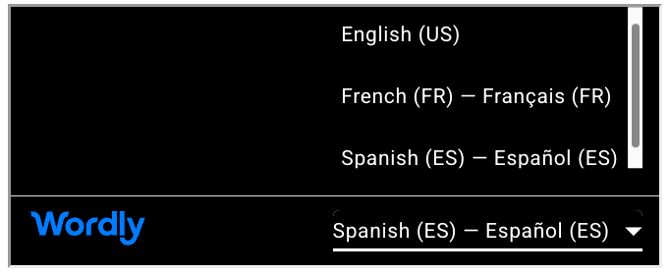
A URL to display session session 'YAKK-2323' restricting the attendee language menu to just English, Spanish, and French would be:
https://attend.wordly.ai/frame/YAKK-2323?show=en,es,fr,& width="100%"
and this embedded in an iframe in your HTML might look like:
<iframe src="https://attend.wordly.ai/frame/YAKK-2323?show=en,es,fr,& width="100%" />
and the output would look like:
You could also use the hide parameter to hide all languages except the ones you want to display. However, we recommend using the show parameter instead, since the list of languages you want to include is usually far shorter than the list of languages you want to exclude.
For more information, read iFrame Integration.