
When a Zoom meeting uses breakout rooms, a single Wordly bot cannot automatically follow attendees into every room. Instead, you invite a separate Wordly bot into the main meeting for each breakout room, rename each bot so you can tell them apart, and then assign each bot to its matching breakout room.
To add Wordly Meeting Bots to Zoom breakout rooms
- Create Wordly sessions for the meeting.
- Edit your Zoom meeting settings to allow Wordly to join your meeting.
- Invite and rename a bot for each room in the main Zoom meeting.
- Create breakout rooms and assign each bot to its matching room.
- Add attendees to the rooms and share the Wordly attend link.
Create Wordly sessions for the meeting
You'll need to create one Wordly session for the main Zoom meeting and one Wordly session for each of the breakout rooms that you'll need.
-
From the Wordly portal, click "Sessions" from the left side menu.
- Click "+ Add Session."
- In the "Add Session" window, enter information for your session for the main Zoom meeting and click "Save."
- Click "+ Add Session" and in the "Add Session" window, enter information for your first breakout room. Click "Save."
- Create an additional Wordly session for each breakout room.
For more information about creating a session, read Creating A Session.
Example: You are hosting a Zoom meeting where you plan to send the attendees into three breakout rooms. You create a Wordly session titled Main Meeting, and three additional Wordly sessions: Wordly -1, Wordly -2, and Wordly -3.
Edit your Zoom meeting settings to allow Wordly to join your meeting
-
Sign into to the browser version of Zoom.
- Under "Settings," go to "Recording" and select the following:
- Under the "Who can request host permission to record" section, select the "External meeting participants" checkbox.
- Under the "Advanced cloud recording settings" section, select the "Participants can request host to start cloud recording."
Go to "Settings". Under the "Recording" section, select the following:
For more information, read Use Wordly With Zoom Meetings (No Integration Required)
Invite and rename a bot for each room in the main Zoom meeting
- Start your Zoom meeting. The Meeting Bot tries to join for 10 minutes before giving up, so it’s best to invite the bot when the meeting has begun or just before it starts.
- From the Wordly dashboard, click the "Sessions" menu and select your main session. Click "Get Links to Join."
- Expand the "Video Conference" box and click "Invite Meeting Bot."
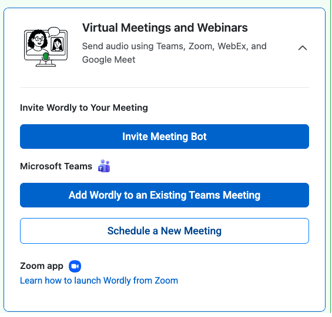
- In the "Invite Wordly to a Meeting" box, select the speaker's language.
- Copy and paste the Zoom meeting URL into the meeting URL field. Make sure there is an https:// in front of the URL.
- Click "Invite." Inviting Wordly takes a moment to process.
- You may need to allow Wordly to join the meeting. Admit Wordly.
- When you receive a notification that Wordly is requesting to record the meeting, allow the recording. Wordly must be allowed to record in order to access the audio.
- Repeat the process, inviting the other Meeting Bots to the same Zoom meeting. Once a Meeting Bot joins, rename its participant tile so you can tell it apart from other Wordly bots.
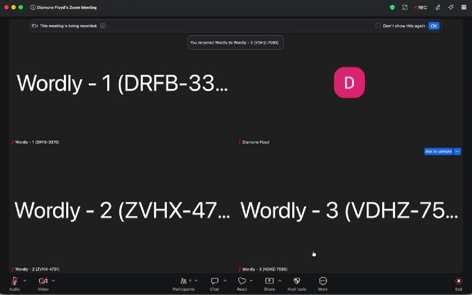
Three Wordly bots in the main Zoom meeting: Wordly -1, Wordly -2, and Wordly -3
Example: You start your Zoom meeting and you invite the Meeting Bot that you will have for the main Zoom meeting. You allow the bot in, allow it it to record, and rename the bot Main Meeting. You proceed to invite the first breakout room Meeting Bot into the Zoom meeting, and rename the bot Wordly -1. You then invite the next two Meeting Bots into the meeting and rename them Wordly -2 and Wordly -3.
Create breakout rooms and assign each bot to its matching room
-
In Zoom, open Breakout Rooms and create a room for each Wordly breakout room bot.
- Assign each Wordly Breakout room bot to a breakout room. Don't assign the main Wordly Meeting Bot to a room.
- (optional) Once the Wordly Breakout room bot has been assigned to the room, join the room yourself to confirm the bot is present and recording before opening the room to attendees. Look for the red recording dot next to the bot's name in the Participants list.
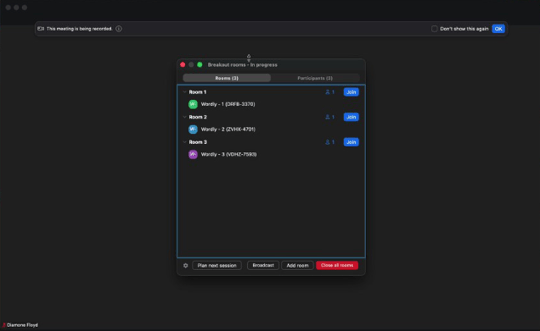
The Breakout Rooms panel displaying each renamed Wordly Bot to its matching room
Example: In the Zoom meeting, you create 3 breakout rooms for your attendees. You name the rooms Wordly -1, Wordly -2, and Wordly -3. You assign Meeting Bot Wordly -1 to the room with the same name. You then assign the Meeting Bots Wordly -2 and Wordly - 3 to the corresponding rooms.
You add yourself to a room, verify that it's recording, and then leave the room. You repeat with the other rooms.
Add attendees to the rooms and share the Wordly attend link
- From the Wordly dashboard, select "Sessions" from the left side menu.
- Select a Wordly Breakout Room Bot Session. Click "Get Links to Join."
- Expand the "Join On Personal Devices" panel.
- Click "Copy Attendee Link."
- Save the attendee link. Repeat the process for the other Wordly Breakout Room Bot Sessions.
- While in the main Zoom meeting, share with the attendees the Wordly Breakout Room Bot Session URLs. Make sure attendees can access the URL corresponding to the room that they will be sent into.
- Send the attendees into their breakout rooms.
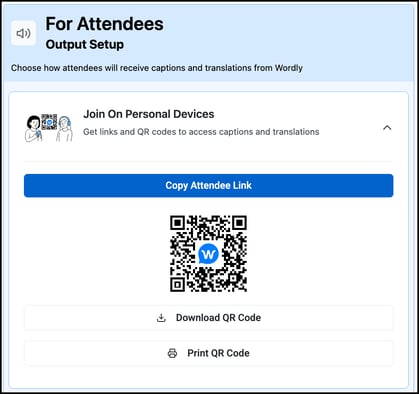
Example: You go to the Wordly portal and copy the Wordly Attend URL for each Wordly Breakout Meeting Bot session. While in the main Zoom meeting, you share with the attendees the Wordly Attend URLs:
Wordly 1 - https://attend.wordly.ai.join/Wordly-1session.
Wordly 2 - https://attend.wordly.ai/join/Wordly-2 session.
Wordly 3 - https://attend.wordly.ia/join/Wordly-3 session.
At this point, you can make sure that all attendees can access the correct URL and troubleshoot any issues.
Once your attendees have accessed the meeting bot URL for the room that they are going to be put in, you send your attendees into the breakout rooms: Wordly -1, Wordly -2, and Wordly -3.
After your breakout sessions
Once you're done with the breakout rooms, and all attendees have returned to the main meeting, you'll need to end each breakout Wordly bot in the Wordly portal. Just closing the breakout rooms in Zoom won't stop the breakout Wordly bots.
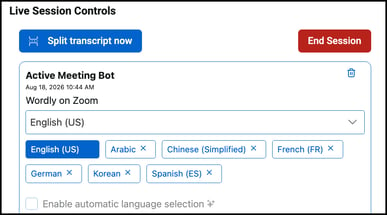
In the Wordly portal, navigate to the "Live Session Controls" window. Click the trash can icon ( ).
).
In the "Are you sure you want to remove this bot?" window, click "Remove."
Don't end the Meeting Bot for the main Zoom meeting. Allow it to continue for the duration of your meeting.
Verify breakout room translations
After the Wordly session, return to the portal and open the "Transcripts" tab. Each breakout room's session has its own transcript enter. This confirms that the room's bot successfully captured that room's conversation independent of the other rooms.