
How to react and save highlights in Wordly
As you follow along with the Wordly translation, you can react and save highlights from your session.
You can react and save highlights only if it's been enabled by the event organizer.
To react and save highlights
- Join the session.
- Find the highlight:
- Click or tap the highlight bubble to save a highlight.
- Hover over or tap and hold on the highlight bubble to bring up the reaction icons. Tap/click the icon that you want to use.
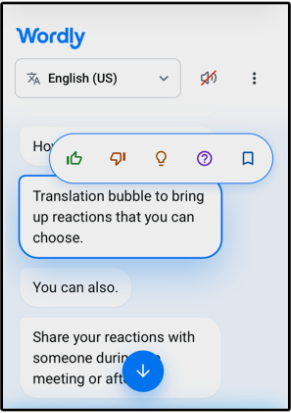
To copy and share highlights
You can copy and share highlights while you're attending the session.
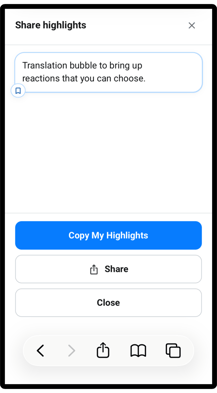
- Once you have some highlights saved, find the Highlights panel (on the side on desktop browsers, and at the bottom on mobile).
- Find the highlight bubble and click or tap the highlight.
- Click or tap the share button (
 ).
).
- Copy My Highlights - Copies your highlights to your system's clipboard.
- Share - Sends your highlights to common share apps, such as text and email.
How to hear the speaker in a noisy environment
With Silent Theater, you can hear the speaker's live voice through their headphones, alongside any text-to-speech translations. This feature is ideal for loud environments such as a trade show booth or a conference with multiple open-stage presentations running simultaneously.
Silent Theater is only available if it's been enabled by the event organizer.
To use Silent Theater (for attendees)
- Join the session as an attendee.
- Click the speaker icon (
 ) and make sure that the speaker is turned on.
By default, you'll hear the speaker's live voice when the speaker is presenting in the attendee's own language. If you prefer to hear the virtual translated voice instead, you can update this preference in your session settings.
To change to a virtual voice
-
Within the session, click the 3 horizontal lines and select Settings (
 ).
). -
Select the "Play a virtual voice when the speaker is speaking my own language" checkbox.
-
Click "Apply."