
Workspaces are structures in Wordly that organizations can use to create and manage multiple groups of users and their Wordly resources. These structures use an organization’s single-sign authentication (SSO) to streamline access to Wordly and manage permission-based workspaces. Administrators can create and manage multiple workspaces within an organization.
Workspaces are only available to organizations that use SSO to authenticate.
Users within the same workspace can use the same Wordly assets: sessions, glossaries, and transcripts. This lets users collaborate as a team.
Example: If one person is out sick, another can now step in to launch a session that person created. Or if one person updates a session’s settings, another can now take over creating summaries of the transcripts after that session.
Workspaces within an SSO realm are managed by the Organization Admin, an administrator role.
The Organization Admin can:
-
- Create Workspaces: Set up new shared workspaces for their team.
- Manage Users: Assign or remove users from shared workspaces. Read Adding Users to a Workspace.
- Manage Session Defaults for shared workspaces. However, all users can edit Session Defaults in their Personal Workspace.
- View all workspaces within the SSO realm.
There’s only one billing account associated with a workspace in order to track minutes.
There are two types of workspaces: personal and shared.
Personal Workspaces: Each user within an SSO realm has their own personal workspace. The user can access their own Wordly sessions, glossaries, and transcripts. These assets, as well as personal custom fields, are migrated from their Wordly account. A user can view and manage the session defaults under Workspace Admin in the left side menu. These defaults were previously in the user’s profile.
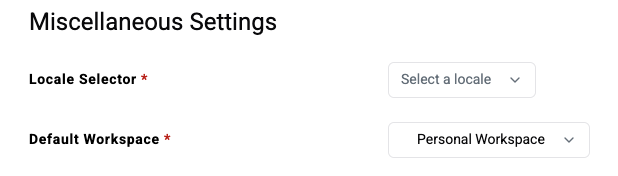
When you’re signing in to Wordly, the default workspace is your personal workspace. The user may change this in their Profile Settings page:
In your personal workspace, you need to be aware:
- You can’t invite others to your personal workspace.
- If you make changes in the glossary, they are saved only in your personal workspace, not shared workspaces. We recommend renaming any edited glossaries in your personal workspace to avoid confusion, as your glossaries will be copied to shared workspaces when your user is added.
Shared Workspaces: An organization admin can add a group of users to the same workspace as a shared workspace. This lets the users share and edit Wordly assets. Users can locate any shared workspaces that they belong to in the dropdown menu under the Workspace tab on the left side.
In shared workspaces, you need to be aware:
-
Only Organization Admins can access the Session Defaults of a shared workspace.
- Only Organization Admins can create shared workspaces and manage users within the workspace.
- Anyone in a shared workspace can edit a glossary and the changes will be shared in the shared workspace. We recommend renamining the glossary if you edit it in a shared workspace, so that you won’t confuse it with the same glossary in a personal workspace.
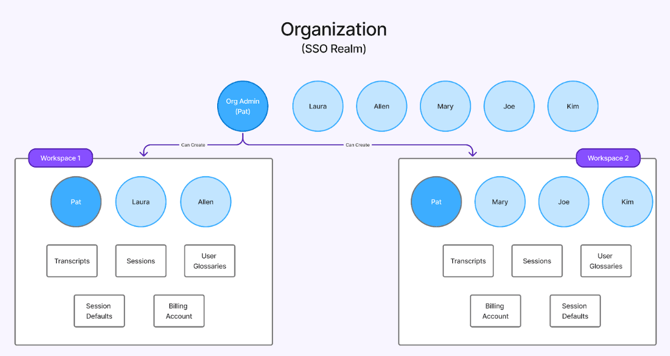
Example: In the following graphic, Pat is the Organization Admin for the organization shown. Pat oversees both workspaces. Laura and Allen belong to Workspace 1 and Mary, Joe, and Kim belong to Workspace 2. Laura and Allen can share and edit the glossaries, sessions, and transcripts in Workspace 1, but can’t access or edit these resources in Workspace 2.
Session Defaults
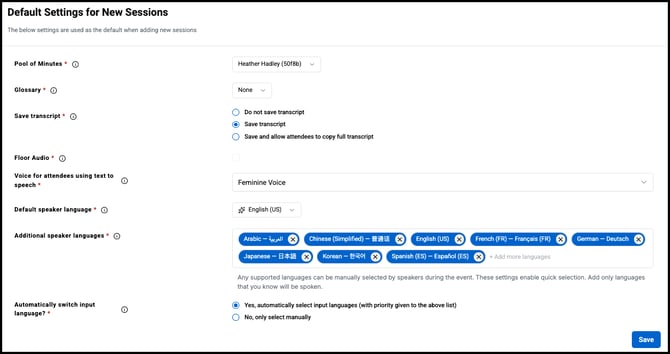
Each user can view and edit the default settings for their personal workspace under the Session Defaults tab in the left side menu. Within Session Defaults, you can access:
- Pool of minutes - This displays which account the billing minutes come from. This field is for information only.
- Glossary - Select the glossary you want to use.
- Save transcript - Select how you want to save the transcript, if at all.
- Voice for attendees using text to speech - Select either feminine or masculine voice.
- Default input language - Select the default speaker’s language, used by RTMPS streams and the bot.
- Speaker’s language selector Select up to 8 languages that speakers can select.
- Automatically switch input language - Select to use Automatic Language Selection during the session.
Glossaries
When a user is added to a shared workspace, copies of their personal glossaries will be added to the workspace as well. This makes those glossaries shared with all members of the workspace, so anyone can update the glossary and have those changes propagated to all sessions in workspace that utilize that glossary.
It’s important to note, however, that the original glossaries in the Personal Workspace are not connected to these workspace glossaries, so changes in one workspace will not be reflected in the other.